

Getting Started
Navigating the App
A guide to Aprenta's navigation bar, main pages, settings, and quick actions
Navigating the App
Section titled “Navigating the App”Aprenta’s interface is organized around a top navigation bar that adapts to your role. The pages you see, the actions available to you, and the data you can access all depend on your assigned permissions.
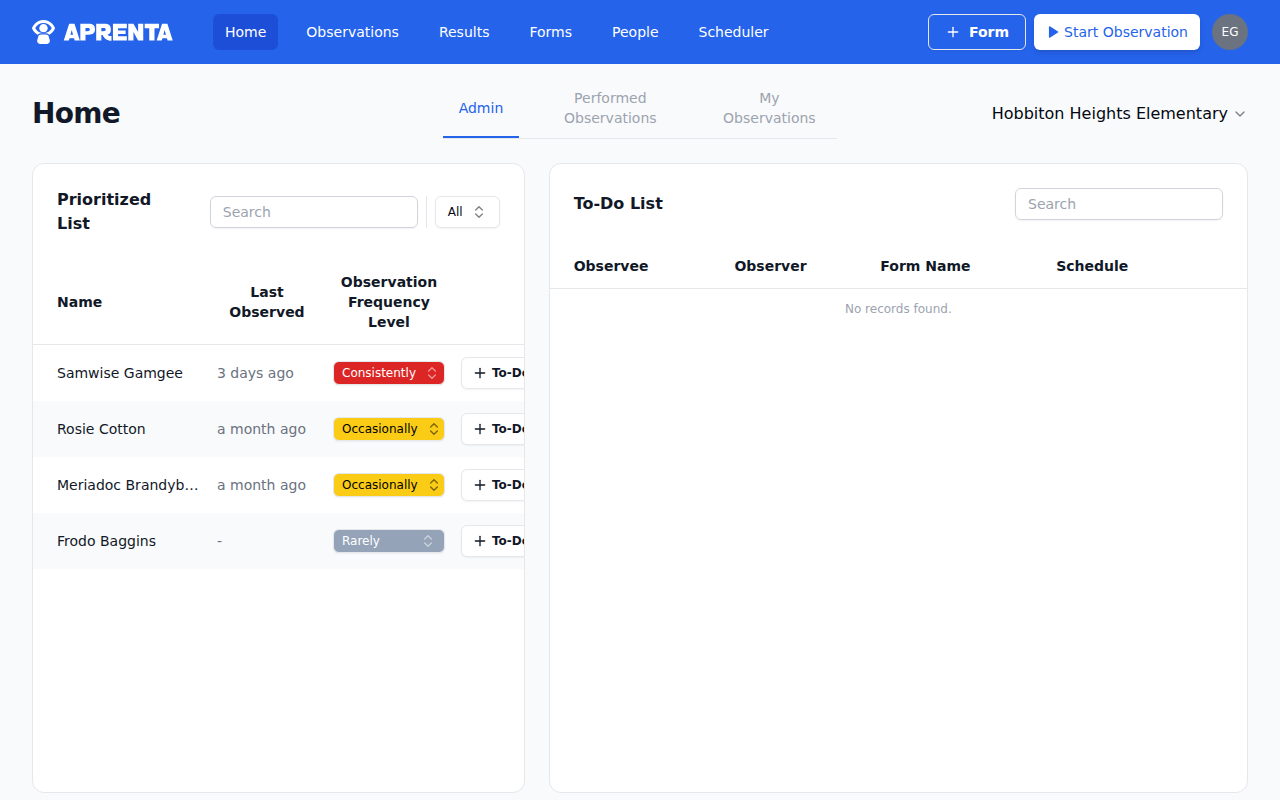
Top Navigation Bar
Section titled “Top Navigation Bar”The navigation bar runs across the top of every page. It contains the Aprenta logo, your main menu items, quick-action buttons, and your user menu.
Depending on your role, you may see some or all of these menu items:
- Home — Your personalized dashboard with prioritized staff, upcoming schedules, and recent observations. Visible to all roles except Member Manager.
- Observations — A filterable list of all observations in your schools. Visible to principals and assistant principals (Organization Manager or Observation Manager role).
- Results — Analytics and reporting with summary reports, form totals, and staff results. Visible to principals, assistant principals, and coaches (Reporter, Observation Manager, or Organization Manager role).
- Forms — Browse, create, and manage observation forms. Visible to coaches and principals (Form Manager or Organization Manager role).
- People — View and manage staff in your schools. Visible to principals and assistant principals (Member Manager or Organization Manager role).
- Scheduler — A calendar view for scheduling and tracking upcoming observations. Visible to coaches, principals, and assistant principals (Scheduler, Observer, Observation Manager, or Organization Manager role).
If you can’t see a page listed above, you don’t have the required role. See Understanding Roles & Permissions for details on which roles unlock each page.
Quick-Action Buttons
Section titled “Quick-Action Buttons”The right side of the navigation bar includes quick-action buttons that let you start common tasks without navigating away from your current page:
- + Form — Create a new observation form. Visible to coaches and principals (Form Manager role).
- Start Observation — Begin a new observation. Opens a menu where you select a form and school. Visible to coaches (Observer role).
User Menu
Section titled “User Menu”Click your profile avatar in the top-right corner to open the user menu. From here you can:
- My Profile — View and edit your own profile
- Settings — Access account, user, billing, and school settings (Owner only)
- Sign Out — Log out of Aprenta
Organization Switcher
Section titled “Organization Switcher”If you belong to multiple organizations, use the organization switcher to move between them. Your navigation items, data, and permissions will update to reflect the selected organization. You may have different roles in different organizations.
Settings Pages
Section titled “Settings Pages”The Settings area is accessible to the account Owner through the user menu. It contains four tabs:
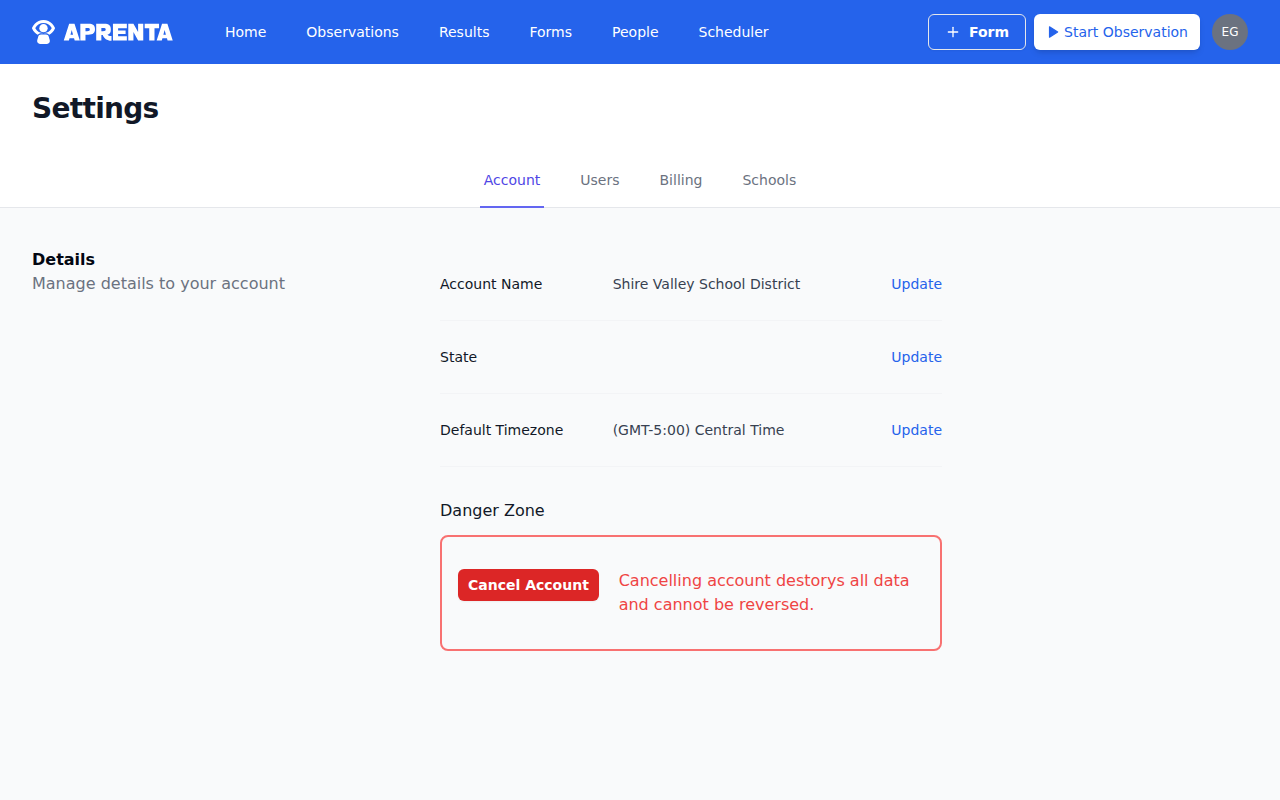
| Tab | What It Contains |
|---|---|
| Account | Organization name, timezone, and account cancellation |
| Users | Manage and invite users, assign roles |
| Billing | Subscription plan and payment method |
| Schools | Add, edit, and manage schools |
Non-owners who need to manage staff do so through the People page, not through Settings.
Page Layouts
Section titled “Page Layouts”Most pages in Aprenta follow a consistent layout:
- Header area — Page title and action buttons (e.g., “New Schedule,” “Export”)
- Filters — School selector, date range, status filters, or search
- Content area — Tables, cards, calendars, or forms depending on the page
The Home page is unique — it uses a tabbed layout with up to three tabs depending on your role (Admin, Performed Observations, My Observations).
Mobile Navigation
Section titled “Mobile Navigation”On smaller screens, the navigation bar collapses into a hamburger menu. Tap the menu icon to expand the full navigation. All the same pages and quick actions are available in the mobile menu.