

Observations
Managing Observations
How to view, edit, reopen, and delete observations
Who Can Manage Observations
Section titled “Who Can Manage Observations”The Observations page in the main navigation is available to principals (Organization Manager role), assistant principals (Observation Manager role), and account owners (Owner role). These roles can view and manage all observations across their school or schools.
Coaches (Observer role) can manage their own observations from the Home page and the individual observation page, but do not have access to the Observations list page.
The Observations List
Section titled “The Observations List”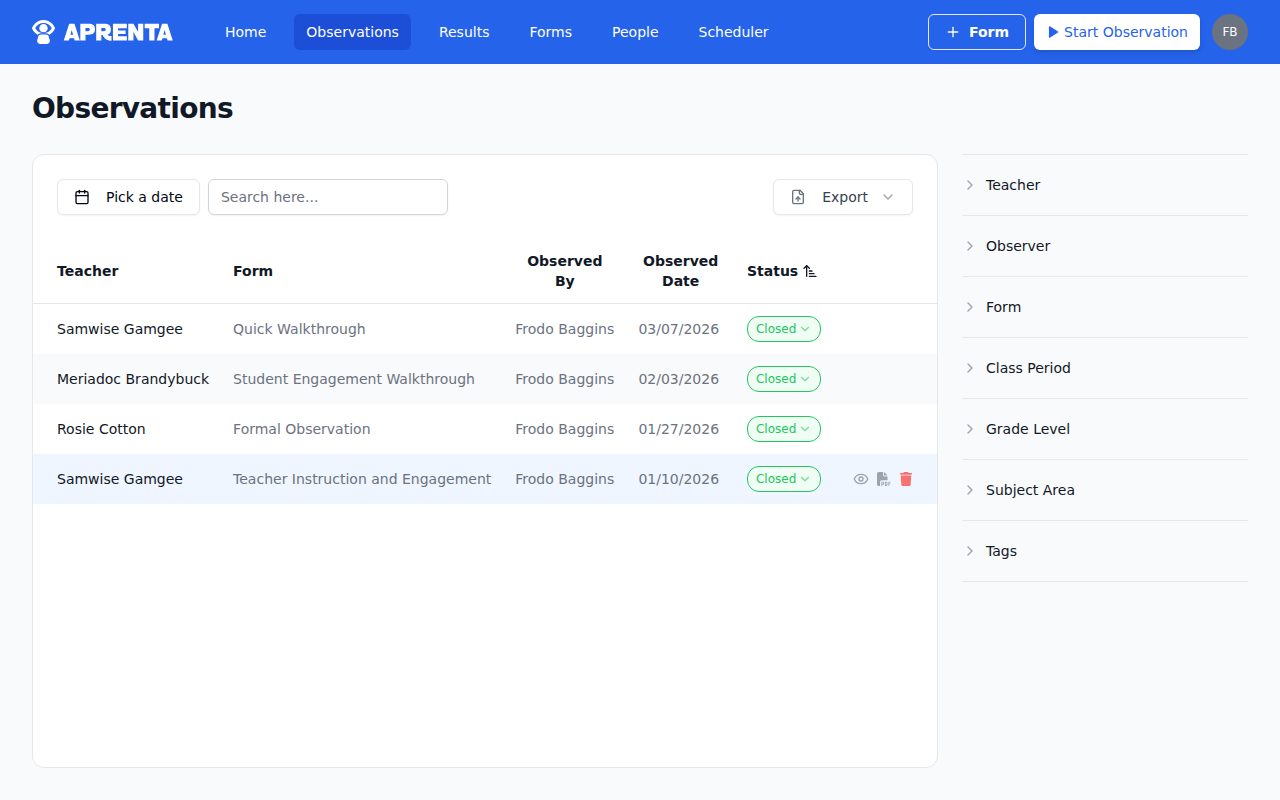
The Observations page displays a table with all observations. The table includes the following columns:
| Column | Description |
|---|---|
| Teacher | The name of the observee |
| Form | The observation form used |
| Observed By | The name of the observer |
| Observed Date | When the observation took place (MM/DD/YYYY) |
| Status | A clickable dropdown showing Open (red) or Closed (green) |
| Actions | PDF download and delete buttons |
The table supports sorting by clicking any column header. Click a column header once to sort ascending, again to sort descending.
Filtering Observations
Section titled “Filtering Observations”A filter panel on the right side of the page lets you narrow the observations list. Available filters are organized as collapsible accordion sections:
- School — Filter by school. Appears only if you belong to multiple schools. Your current school is pre-selected by default. Click Clear to remove the selection.
- Teacher — Search and select one or more teachers (observees)
- Observer — Search and select one or more observers
- Form — Search and select one or more observation forms
- Category — Filter by category items assigned to observations
- Tags — Filter by tags
Date Range and Search
Section titled “Date Range and Search”Above the table, you will find two additional controls:
-
Date Range Picker — Select a custom date range or choose from preset options:
- This Month
- Year to Date
- Fall Semester (for the current school year)
- Spring Semester (for the current school year)
- Current Academic Year
- Previous Academic Year
Click Clear in the date picker to remove the date filter.
-
Search — Type in the search field (placeholder: “Search here…”) to filter observations by keyword. The search is debounced to avoid excessive requests as you type.
Viewing an Observation
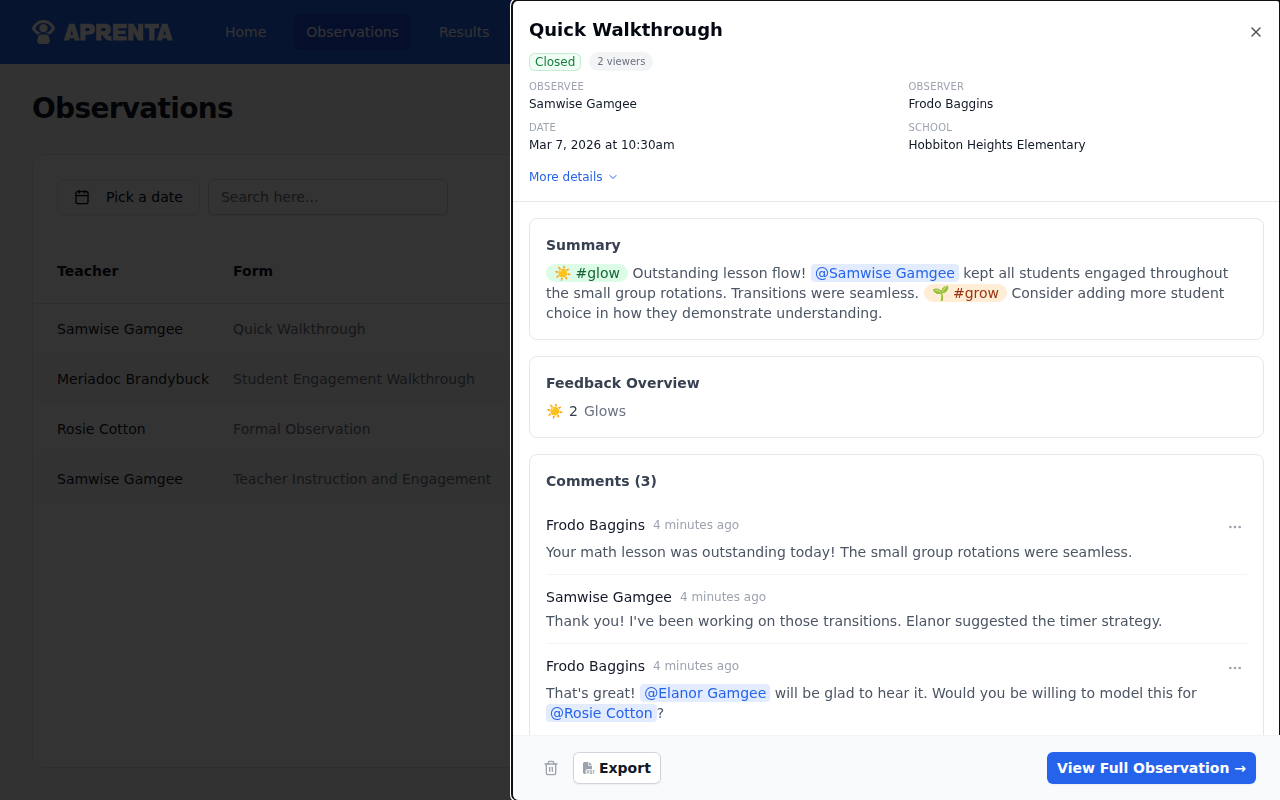
Section titled “Viewing an Observation”Click on any row in the observations table to open the observation in a sliding detail panel on the right side of the page. The panel shows:
- The form name as the panel title
- Observation metadata: status, ID, observed user, observed by, observed on (date and time), and school
- Click Show more to expand and see category selections
- The completed form with all responses displayed in read-only format
Detail Panel Actions
Section titled “Detail Panel Actions”At the bottom of the detail panel, you will find three buttons:
- Export — Download the observation as a PDF
- Delete — Remove the observation (with confirmation)
- View or Edit — Navigate to the full observation page. The button text changes based on status: it shows “View” for closed observations and “Edit” for open ones.
Changing Observation Status
Section titled “Changing Observation Status”You can change an observation’s status directly from the table without opening it:
- Click the status dropdown on the observation row (the colored badge showing “Open” or “Closed”)
- Select Mark as Open or Mark as Closed
- A confirmation dialog appears: “Are you sure you want to mark this observation as Open/Closed?”
- Click Yes to confirm or No to cancel
Reopening a closed observation makes it editable again — the observer (or anyone with edit permissions) can modify responses, categories, tags, and notes. Closing an open observation marks it as complete and switches it to read-only mode.
Deleting Observations
Section titled “Deleting Observations”To delete an observation from the table:
- Click the trash icon in the Actions column of the observation row
- A confirmation dialog appears: “Are you sure you want to delete this observation? This action cannot be undone.”
- Click Yes to confirm the deletion
You can also delete an observation from the sliding detail panel by clicking the Delete button.
Deletion is permanent. The observation and all associated responses, categorizations, and tags are removed.
The Home Page: Observations for Coaches
Section titled “The Home Page: Observations for Coaches”Coaches (Observer role) access their observations from the Home page, which has two sections:
Upcoming Scheduled Observations
Section titled “Upcoming Scheduled Observations”The left side of the Home page shows a table of your upcoming scheduled observations. You can search by keyword using the Search here… field. If you have the Scheduler role, a New button also appears here to create a new schedule.
Recent Observations
Section titled “Recent Observations”The right side of the Home page shows a Recent Observations table listing observations you have conducted, sorted by most recently updated. You can search by keyword using the Search here… field. Click any row to open the observation detail panel.
The Home Page: Observations for Teachers
Section titled “The Home Page: Observations for Teachers”Teachers (Observee role) see their own observation history from the Home page, which has two sections:
- Upcoming Scheduled Observations — A table showing when you are scheduled to be observed.
- My Observations — A table of observations that have been conducted on you, including columns for Observer, Form, Observed Date, and Status.
The Status column shows both the observation status (Open or Closed) and, when applicable, an acknowledgment badge. If your acknowledgment is required, an Action Required badge appears to prompt you to respond.